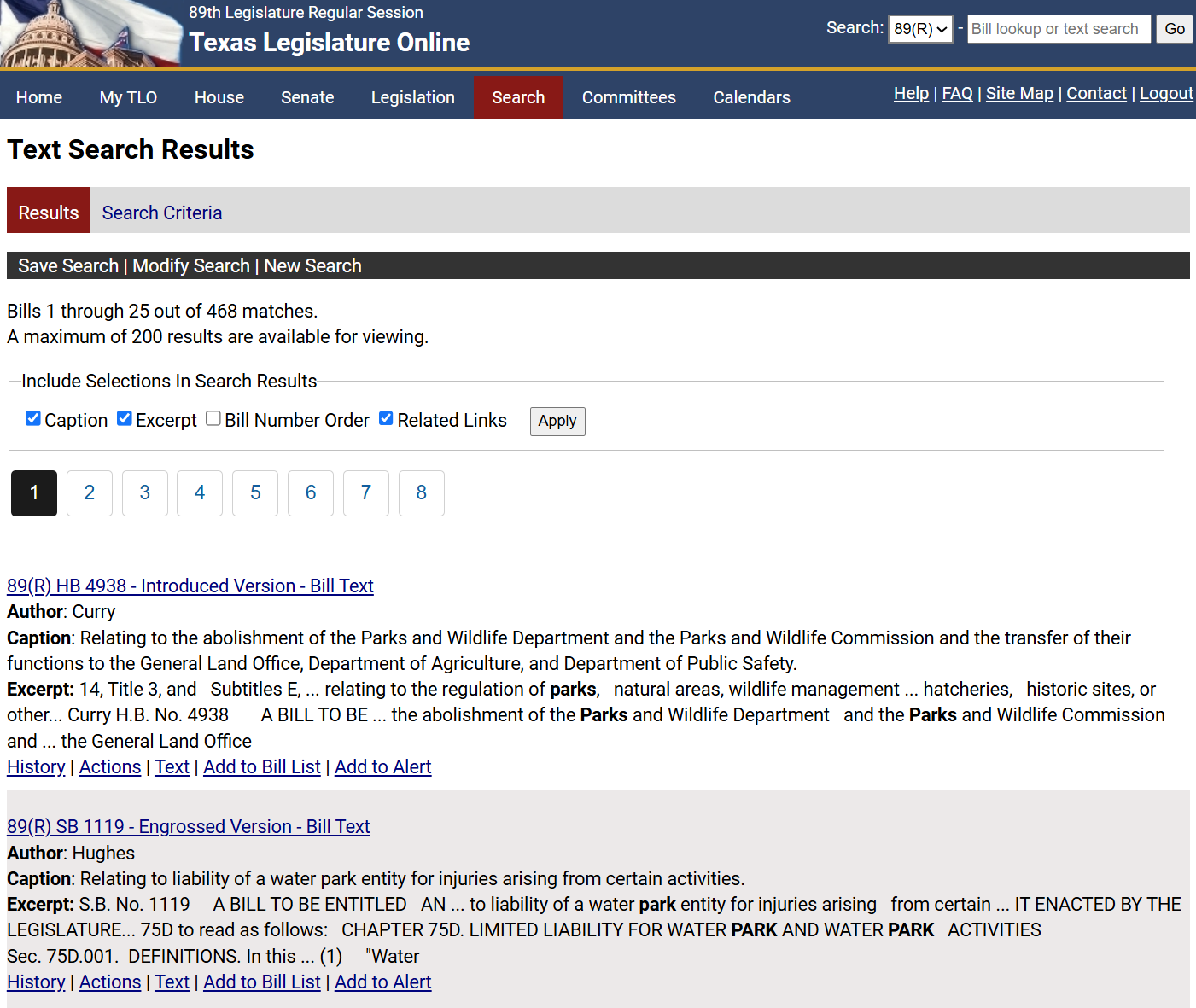
After you perform a Text Search, the Text Search Results display.
After the search results display, you can:
View the Search Results
View the Criteria Used in the Search
Modify a Search
Save and Load a Search
Perform a New Search
The bills that match the text search criteria are displayed on the Results tab. The Results tab displays the Bill Number, Version, Author, latest Caption, and an Excerpt from the bill text.
NOTE: The excerpt consists of one or more passages (sentences or phrases) from the document. Each passage contains an instance of the search term that was used to locate the document.
To display additional information, click the checkbox next to the following:
Caption: Uncheck to hide the bill caption. The default is to show the caption of bills only.
Excerpt: Uncheck to hide the excerpt of the bill text. The default is to show the excerpt for bills.
Bill Number Order: Click to sort the bills by bill number.
Related Links: Check to show the History, Actions, and Text links or add the bill to your Bill List or Alert List.
Click the Bill Number link to view the document text for a specific bill in a separate window.
The Search Criteria tab displays criteria selected on the Text Search window. Click the Search Criteria tab to view the search criteria.
NOTE: Changes to the search criteria cannot be made on the Search Criteria page.
Click the Modify Search link. The Text Search window displays.
Edit the search criteria.
Click Search. The search results display.
You can save the criteria entered on the Text Search window. Once you have saved the search, you can load, run, or delete it.
Performing a new search allows you to run a search with new criteria.
Click the New Search link. The Text Search window displays.
Enter the search criteria.
NOTE: All criteria from the previous search, except the Legislature, will be cleared.
Click Search. The search results display.