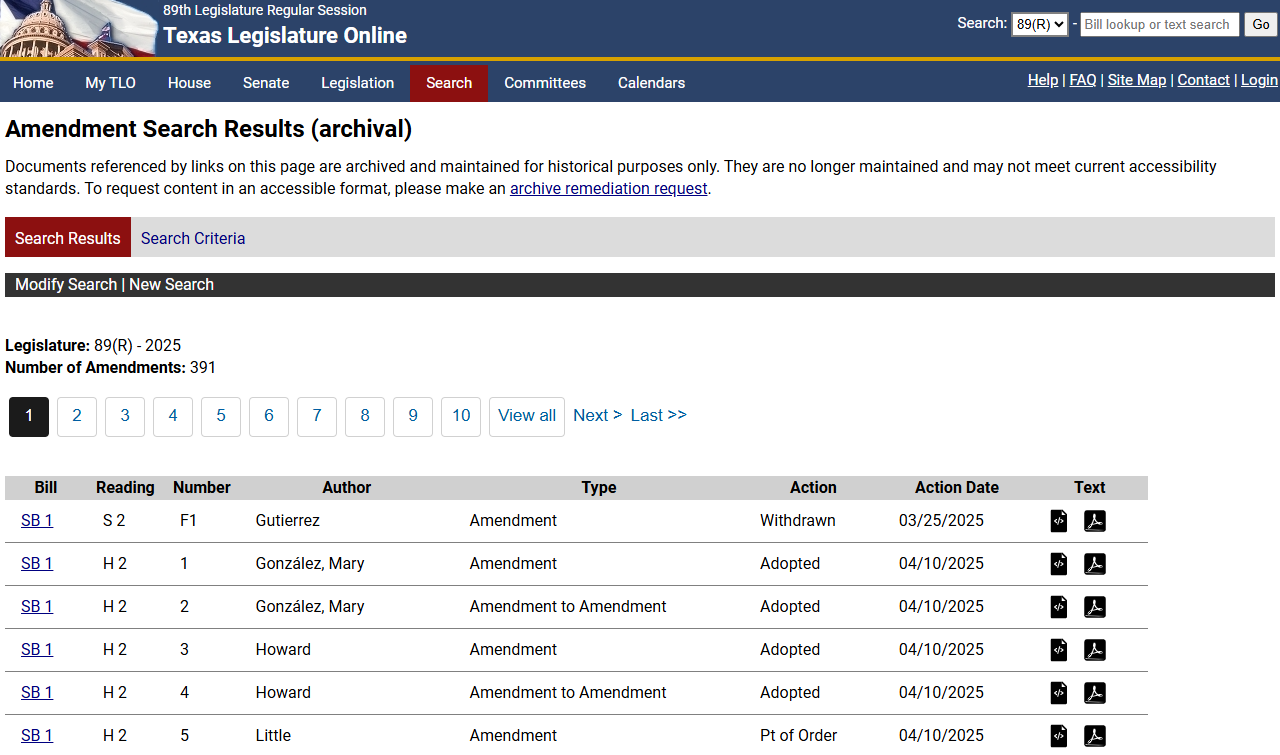
After you perform an Amendment Search from the Search tab, the Amendment Search Results display.
_______________________________________________________________________
Document icon key:
 = Adobe PDF format
  = HTML format
  = Word format
______________________________________________________________________
After the search results display, you can:
The amendments that match the search criteria are displayed on the Search Results tab:
Bill: Displays the bill number that the amendment was offered. Click the link to display a separate window of the Bill History window for the bill.
NOTE: By default, the amendments are sorted by bill.
Reading: Displays the chamber (H or S) and the reading (2 or 3) where the amendment was offered.
Number: Displays the amendment number as determined by the house or senate.
Author: Displays the amendment's primary author.
NOTE: To sort the amendments by author, click the Author heading.
Coauthor: Displays the amendment's coauthor information. Click the Coauthors link to view the amendment's coauthors.
Type: Displays the type of amendment.
Action: Displays the action that was taken on the amendment.
NOTE: To sort the amendments by action, click the Action heading.
Action Date: Displays the date the action was taken.
NOTE: To sort the amendments by action date, click the Action Date heading.
Text: Displays the text of the amendment. Click the PDF link to view the amendment in PDF format, or click the HTML button to view the amendment in HTML format.
The Search Criteria tab displays the selected criteria on the Amendment Search window. Click the Search Criteria tab to view the search criteria.
NOTE: Changes to the search criteria cannot be made on the View Search Criteria page.
Click the Modify Search link. The Amendment Search window displays.
Make the changes to the search criteria.
Click Search. The search results display.
You can save the criteria entered on the Amendment Search window. Once you have saved the search, you can load, run, or delete it.
Performing a new search allows you to run a search with new criteria.
Click the New Search link. The Amendment Search window displays.
Enter the search criteria.
NOTE: All criteria from the previous search, except the Legislature, will be cleared.
Click Search. The search results display.