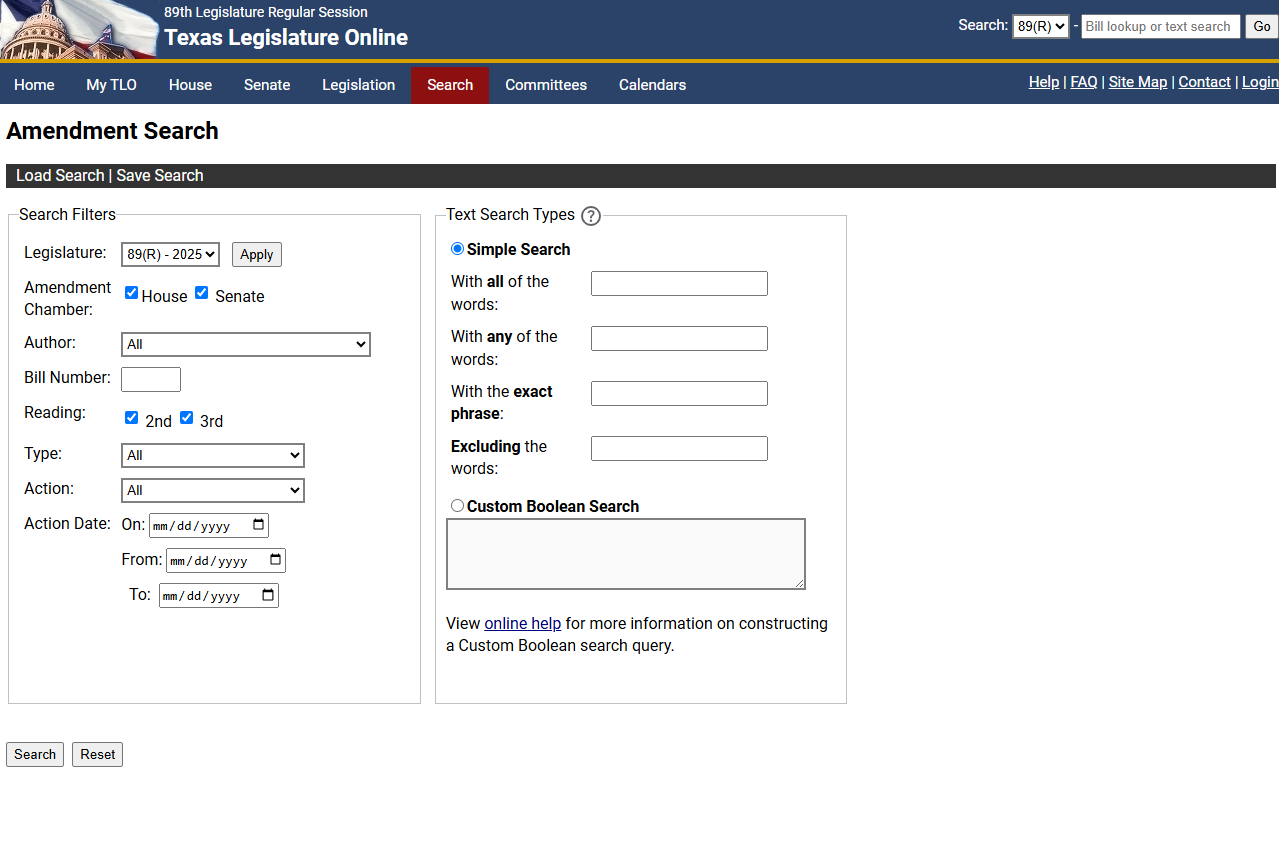
Use the Amendment Search feature to search for amendments by legislature, chamber, author, bill number, reading, amendment type, action, specific date range, or text.
From the menu bar, click the Search tab, then click Amendment Search. The Amendment Search window displays.
From the Legislature dropdown, select the legislative session you want to search.
In the Amendment Chamber field, click the House or Senate checkbox. (Both are selected by default.)
Use the Author dropdown to search for amendments filed by any member of the legislature. (All is selected by default.)
In the Bill Number field, enter the bill number in standard format (e.g., HB10, SB12) on which you want to search for amendments.
Click the 2nd or 3rd Reading check box to select which reading of the bill you want to use in your search. (Both are selected by default.)
Use the amendment Type dropdown to select the type of amendment you want to use in your search:
All: Searches on every type of amendment. (Selected by default.)
Amendment: Searches for any proposed alterations to a bill or resolution.
Amendment to Amendment. (Amendment to an Amendment): Searches for any proposed alterations to an amendment.
Committee Amendment: Searches for any committee amendment. A committee will file an amendment when it wishes to make a substantial change to a bill.
Substitute: Searches for any complete substitute for an amendment.
Use the Action dropdown to select the action of the amendment:
All: Finds any action on the amendment. (Selected by default.)
Adopted: Finds amendments that were approved or accepted.
Failed: Finds amendments that failed to be approved or accepted.
Point of Order: Finds the amendments that were stopped due to a breach of the procedural rules.
Postponed: Finds amendments that were postponed for consideration until a later time.
Tabled: Finds amendments that were tabled after a member makes a non-debatable motion and the members of the chamber voted to table.
Withdrawn: Finds amendments that were withdrawn for consideration by the author.
Use the Action Date fields if you want to search for amendment actions on a specific date or within a date range:
On: Enter or choose a specific date from the calendar dropdown.
From and To: Enter or choose a date range from the calendar dropdown.
From the Amendment Search window, click the Simple Search or Custom Boolean Search radio button:
NOTE: The Simple Search radio button is the default; however, it must be re-selected when moving from the Custom Boolean field. When text is entered in both fields, only the text entered where the radio button is selected is used in the search.
If you select Simple Search, you can enter text in any or all of the first four fields:
With all of the words: Searches for amendments that contain all of the entered words. This is the equivalent of placing the And connector between each word.
With any of the words: Searches for amendments that contain at least one of the words. This is the equivalent of placing the Or connector between each word.
With the exact phrase: Searches for amendments containing words in the entered order. This is the equivalent of placing quotes around the words.
Excluding the words: Searches for amendments that do not include any of the entered words. This is the equivalent of using a Not search.
If you select Custom Boolean Search, you manually enter the text and the connectors in the field provided.
TIP: Right-click to see the list of connectors available to use.
If you want to clear all the search criteria, click the Reset button.
After you have entered all the search criteria, click the Search button. The Amendment Search Results display.
NOTE: Click the Save Search button to save the amendment search. Click the Load Search button to load, run, or delete a previously saved text search.