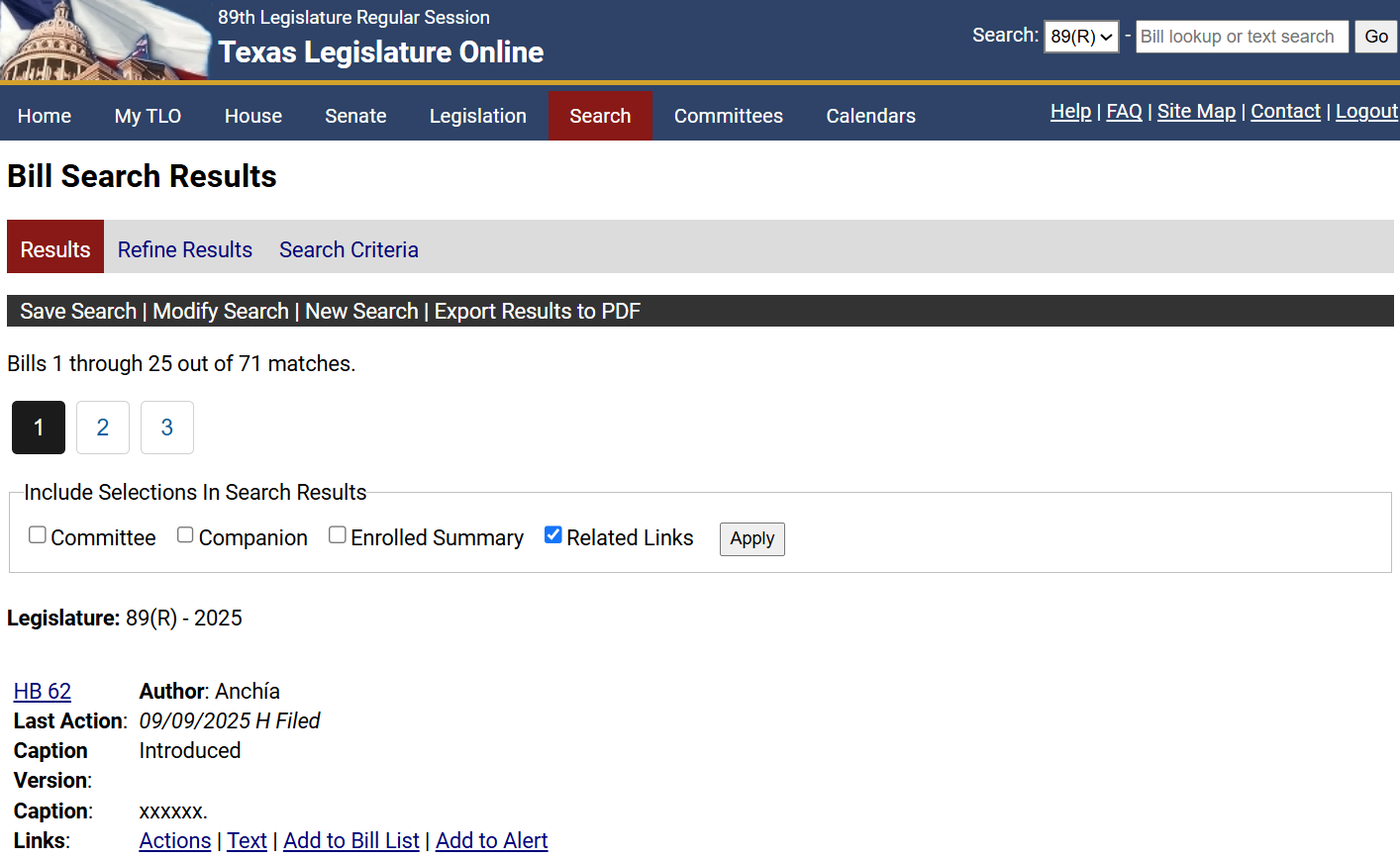
After entering the bill search criteria in the Bill Search page, click Search to display the results. The bills that match your search criteria display on the Results tab.
The bills that match the search criteria are displayed on the Results tab. The Results tab displays the Bill Number, Author, Last Action, Caption Version, and Caption:
To display additional information, click the checkbox next to the following:
Committee: Displays the committee the bill was referred to and the committee status.
Companion: Displays any companion bills.
Enrolled Summary: Displays a summary of a bill if the bill was passed by both chambers and sent to the governor.
Related Links: Displays the Actions, Text, Add to Bill List, and Add to Alert links.
Click the Bill Number link to view the history for a specific bill in a separate window.
After running a search, you can narrow your search results by keeping or removing bills with specific actions.
The Search Criteria tab displays criteria selected on the Bill Search window. Click the Search Criteria tab to view the search criteria.
NOTE: Changes to the search criteria cannot be made on the View Search Criteria page.
Click Modify Search. The Bill Search window displays.
Update the search criteria.
Click Search. The search results display.
You can save the criteria entered on the Bill Search window. Once you have saved the search, you can load, run, or delete it.
Performing a new search allows you to run a search with new criteria.
Click New Search. The Bill Search window displays.
Enter the search criteria.
NOTE: All criteria from the previous search, except the Legislature, will be cleared.
Click Search. The search results display.
Click the Add to Bill List link. The Add Results to Bill List dialog box displays.
NOTE: You can add up to 200 bills to a bill list.
Add the bills to an existing or create a new bill list:
NOTE: The Existing bill list and New bill list radio buttons do not display when creating a bill list for the first time.
To add the bills to an existing bill list, click the Existing bill list radio button. Using the Existing bill list dropdown, select the bill list.
To create a new bill list, click the New bill list radio button. Enter a name in the New bill list field.
Enter a description of the bill list in the Bill List Description field.
Enter comments for the bill list in the Bill Comment field.
NOTE: The same comment will be applied to all bills.
Click OK.
Click the Export the Results to PDF link. The File Download dialog box displays.
Choose one of the following options:
Open: Allows you to view the search results as a PDF.
Save: Allows you to save the results as a PDF in a specific location.